
Manage bookings & the calendar
Everything that’s booked lives on the dashboard calendar, and every booking opens into a full record of what happened and what you can do about it.
The calendar
Switch between month, week, and day views, filter by service or staff member, and jump between Calendar and List layouts. The Export button opens the CSV export dialog with its own date-range and filter choices.
Inside a booking
Click any booking to open it. You’ll find the customer’s details and answers, the linked Shopify order for paid bookings, and an activity timeline: every email sent, every change made, and by whom.
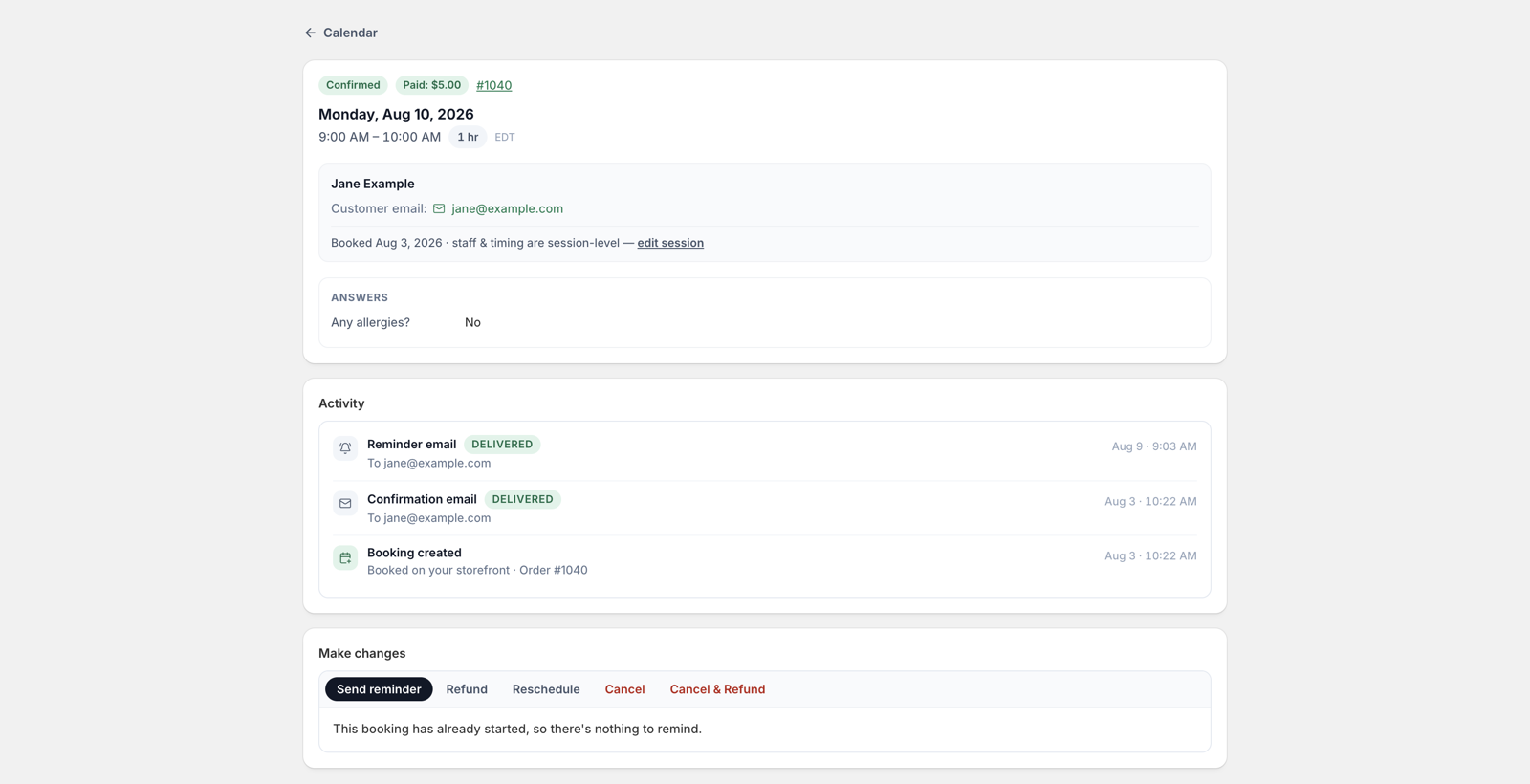
From here you can:
- Send a reminder now: on top of any scheduled ones.
- Reschedule: pick a new slot; the customer is emailed and calendar events move with it.
- Cancel: with or without a refund for paid bookings (see payments & refunds).
Manual bookings
For phone and walk-in customers, use Manual booking on the dashboard’s status card.

Two ways to pick the time:
- From real availability: the same slots a customer would see.
- Override: any time you like, even outside working hours. If it collides with something, the app warns you and asks you to confirm rather than blocking you.
Getting data out
CSV exports live on the calendar itself, in Analytics, and under Settings → Export data: analytics, your calendar schedule, and bookings, ready for spreadsheets.