
Add your first staff member
Every slot a customer can book belongs to a person: the stylist, the trainer, the consultant, you. Staff working hours are what the app turns into available dates and times, so a service without staff shows no availability at all. Adding your first staff member takes about a minute, and it's the step to do before creating services.
1. Open the staff builder
In the app, go to Staff and click Add staff.
2. Fill in the profile
Only the name is required. The photo appears in the booking widget when customers pick a person, the email and phone are for your records, and the calendar color is how this person's bookings show up on your admin calendar.
3. Check the working hours
New staff start with a standard week already set: Monday to Friday, 9 AM to 5 PM. If that matches how they work, there is nothing to do. To change it, open the staff member's Schedule tab and paint hours on the weekly grid, or use the Templates menu to fill a whole week in one click.
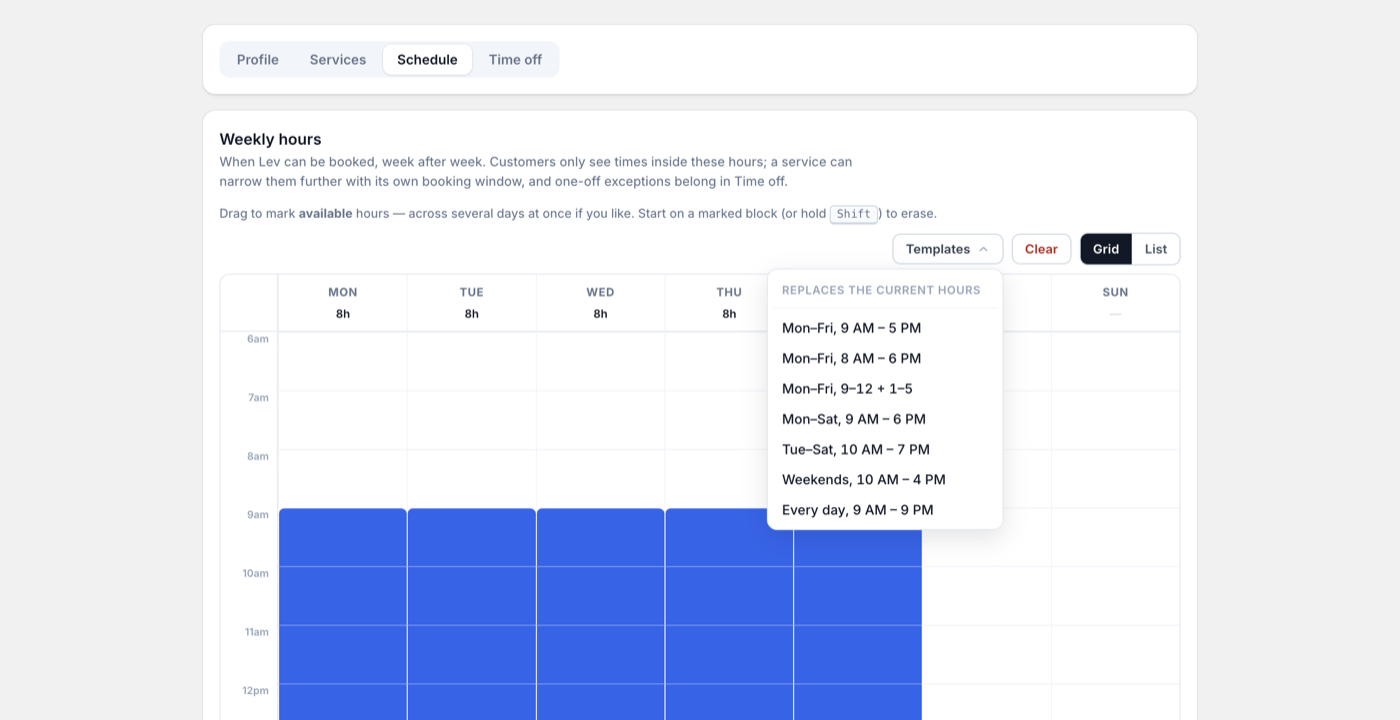
Breaks, days off, and holidays live in Blocked times, on top of the weekly schedule.
4. Assign them to services
A staff member provides availability only for the services they're assigned to. When you create a service, tick them in the Staff offering this service list; on an existing service, open its Staff tab. A service with nobody assigned shows a Not bookable warning in the app until you pick someone.
Verify it worked
Open any assigned service's product page on your storefront and click Book now. The calendar should offer dates inside the staff member's working hours.
Quick answers
Do customers choose the staff member? Your choice, per service. The app can assign whoever is free, let customers optionally pick a person, or require a pick. It's the Staff selection setting on the service.
Can two staff work different hours? Yes. Each staff member has their own weekly schedule, and a service offered by several people is bookable whenever any of them is available.
What about vacations and breaks? Add them as blocked times: one-off dates, recurring breaks, or whole holidays. Connected calendars can also block busy time automatically.
Does the staff member get notified? If you add their email, booking notifications can include them, and you can connect a calendar so their bookings appear there directly.